
This quickstart walks through getting a web game live on Wavedash from scratch. It's engine-agnostic — the steps are the same whether you're using Three.js, Phaser, Godot, or anything that produces a folder of HTML and JS files.
You'll need:
- A Wavedash account (sign up free)
- A game that builds to a folder of static files
The CLI is optional. You can upload and publish entirely from the Developer Portal — skip to step 4 if you'd rather not install a CLI. The CLI exists for teams that want a scripted workflow, a local sandbox (wavedash dev), or CI-friendly build uploads.
1. Install the CLI
curl -fsSL https://wavedash.com/cli/install.sh | shVerify it installed:
wavedash --version2. Authenticate
wavedash auth loginThis opens your browser. Approve the login and the CLI saves your credentials locally. You only need to do this once per machine.
3. Initialize your project
From the root of your game repo:
wavedash initThe CLI walks you through picking or creating a team and game, then writes a wavedash.toml to your project:
game_id = "your-game-id"
upload_dir = "dist"

entrypoint = "index.html"
For Godot and Unity projects, init writes a [godot] or [unity] section with your engine version instead of entrypoint, and defaults upload_dir to build. Make sure upload_dir points at the folder containing your index.html — change it to match your engine's output directory if needed.
4. Call init() — required
This is the one line of code every game needs — including single-player games that use no other Wavedash features. Call Wavedash.init() once, when your game has finished loading. Until you call it, your game stays hidden behind the Wavedash loading screen and never appears. The SDK is injected automatically, so there's nothing to install.
Wavedash.init();init() marks the game as loaded and reveals it to the player. While your game is still loading, report progress as you go — call updateLoadProgressZeroToOne() repeatedly so players see a real loading bar instead of one that sits at 0% and then snaps to 100%:
Wavedash.updateLoadProgressZeroToOne(0.0);
await loadAssets();
Wavedash.updateLoadProgressZeroToOne(0.5);
await startRuntime();
Wavedash.updateLoadProgressZeroToOne(1.0);
Wavedash.init();
If you're using TypeScript and want types and editor autocomplete, install @wvdsh/sdk-js:
npm install @wvdsh/sdk-jsimport Wavedash from "@wvdsh/sdk-js";
Wavedash.init({ debug: true });The default export is the live, fully-typed Wavedash SDK singleton — methods, events, and payloads all autocomplete.
See SDK setup for the full init() API, engine-specific wrappers, and load lifecycle details.
5. Test locally
If you have the CLI installed, produce a production build of your game and run:
wavedash devThis serves your build from a local server and opens it in your browser, signed in to your Wavedash account. The SDK is injected as it is in production (except host-page features like fullscreen; the paywall uses a local mock) but works against sandbox data, so leaderboards, achievements, cloud saves, and multiplayer all work without touching production.
If you're not using the CLI, skip this step and verify your game on wavedash.com after you publish in step 6.
Wavedash runs games in a cross-origin-isolated frame, and wavedash dev uses the same headers as production. If your game calls your own backend or loads assets from a CDN, those responses must send Cross-Origin-Resource-Policy: cross-origin and Access-Control-Allow-Origin: * or the browser blocks them. See Cross-origin isolation.
6. Upload and publish
Open your game in the Developer Portal, go to the Builds tab, and click "Upload new build". Drag and drop your build folder or zip — up to 1 GB uncompressed.
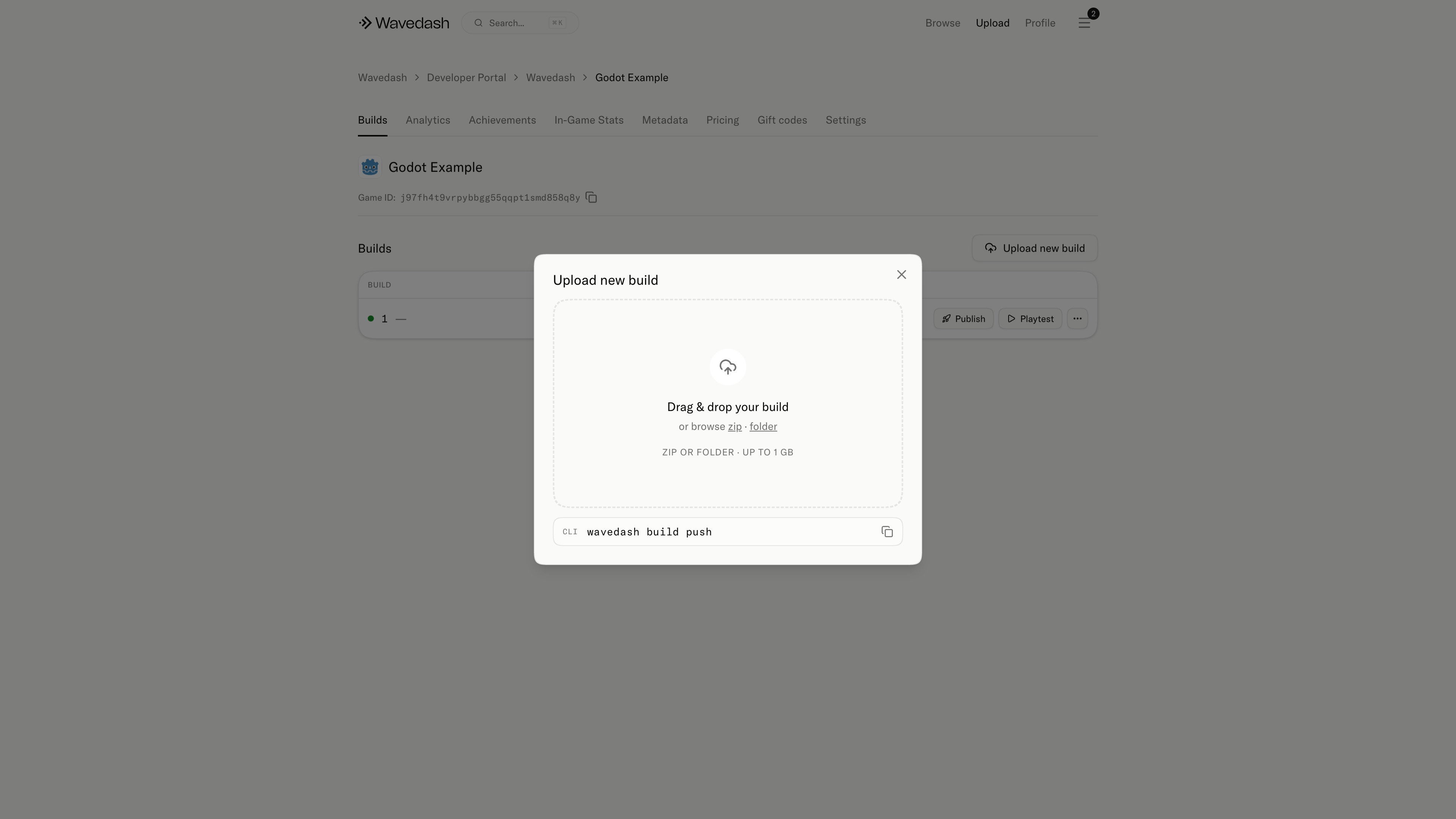
Once uploaded, click "Publish" next to the new build to make it live.
After publishing, open the public game URL in a fresh browser to verify everything works end to end.
Your game is live on Wavedash.
Before you share the link, set up your store page — title, description, cover art, preview video, and tags — in Publishing → Metadata.