
This tutorial sets up automatic build uploads whenever you push to your main branch. After the pipeline runs, the new build appears in the Developer Portal ready to publish — no manual CLI step needed.
Prerequisites:
- A
wavedash.tomlcommitted to your repo (runwavedash initlocally first — see the Quickstart) - A CI/CD system (GitHub Actions or GitLab CI shown below)
1. Get an API key
CI runners don't have a browser, so you authenticate with an API key instead of wavedash auth login.
- Open the Developer Portal
- Go to the API Keys tab
- Click "Create API key", then copy the key — you won't be able to see it again
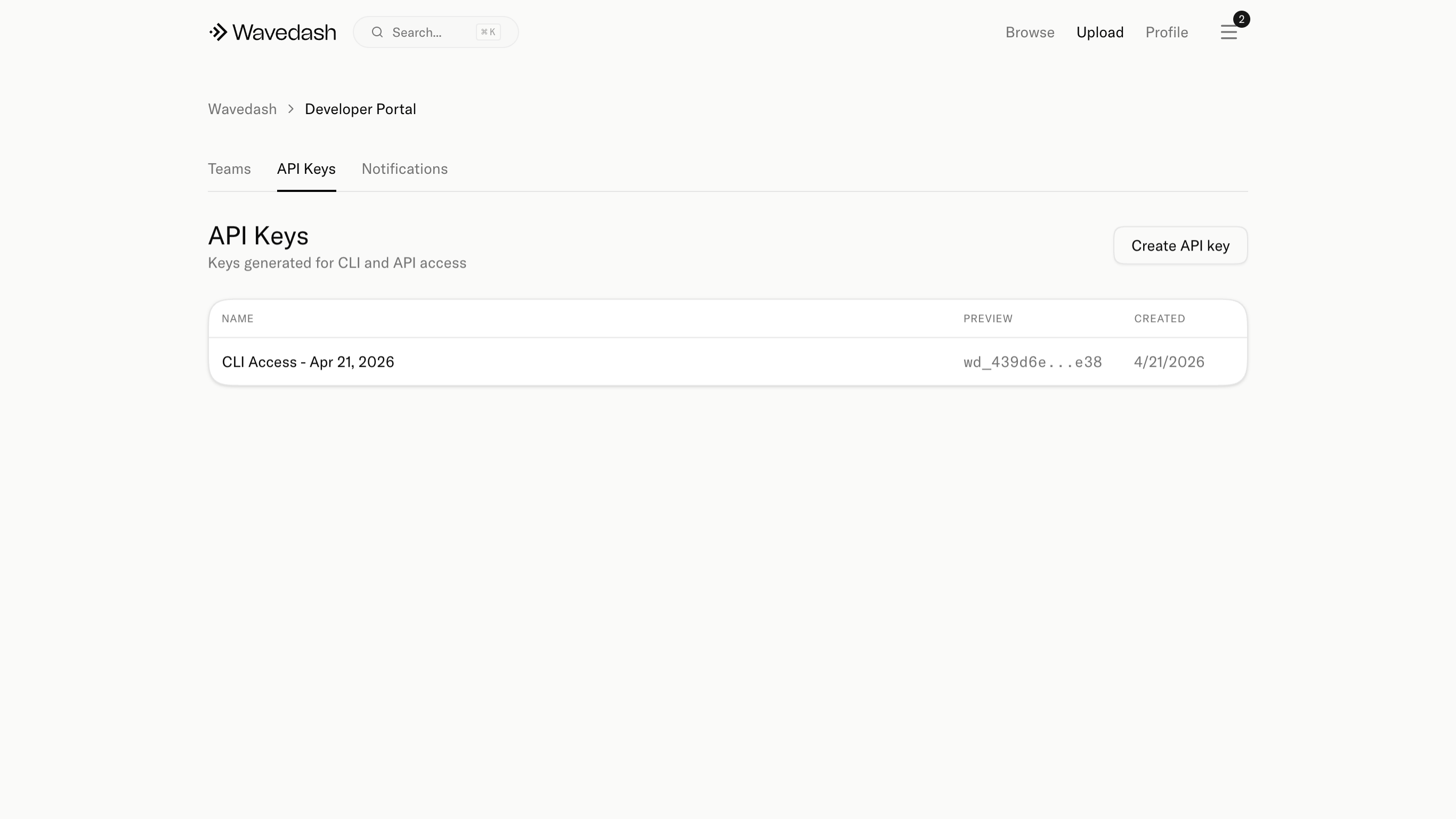
2. Store the key as a secret
Never put your API key in source code or commit it to your repo. Add it as a secret in your CI system:
- GitHub Actions: Repository → Settings → Secrets and variables → Actions → "New repository secret" → name it
WAVEDASH_TOKEN - GitLab CI: Repository → Settings → CI/CD → Variables → add
WAVEDASH_TOKENas a masked variable
3. Add the pipeline step
Create .github/workflows/deploy.yml:
name: Deploy to Wavedash

on:
  push:
    branches: [main]

jobs:
  deploy:
    runs-on: ubuntu-latest
    steps:
      - uses: actions/checkout@v4

      - name: Build game
        run: npm run build   # replace with your build command

      - name: Install Wavedash CLI
        run: curl -fsSL https://wavedash.com/cli/install.sh | sh

      - name: Push build
        run: wavedash build push -m "Build ${{ github.sha }}"
        env:
          WAVEDASH_TOKEN: ${{ secrets.WAVEDASH_TOKEN }}
When WAVEDASH_TOKEN is set, the CLI uses it automatically — no login step needed.
Replace npm run build with whatever command produces your game's output folder, and make sure upload_dir in wavedash.toml points at that folder.
4. Vary the target per job (optional)
WAVEDASH_TOKEN isn't the only variable the CLI reads. Every field in wavedash.toml has a WAVEDASH_* counterpart that wins for a single run, so one repo and one committed config can feed several destinations without a tracked file changing.
The common version of this: widen the trigger to every branch, then send anything that isn't main to a separate test game.
    on:
      push:                      # was: branches: [main]

    # ...

          - name: Push build
            run: wavedash build push -m "Build ${{ github.sha }}"
            env:
              WAVEDASH_TOKEN: ${{ secrets.WAVEDASH_TOKEN }}
              WAVEDASH_GAME_ID: ${{ github.ref_name == 'main' && vars.PROD_GAME_ID || vars.TEST_GAME_ID }}
The run announces what it picked up — env override: WAVEDASH_GAME_ID → game_id = … — so the log records which game each build went to. A variable that resolves to an empty string counts as unset and falls back to wavedash.toml, so a mistyped repository variable doesn't fail the job. See Environment variables for the full list, including WAVEDASH_UPLOAD_DIR and the engine version overrides.
5. Publish after CI
Uploading does not make a build live. After the pipeline runs, open the Developer Portal, go to the Builds tab, and click "Publish" on the build you want to ship.
This is intentional — CI uploads on every merge, but you decide exactly when players see a new version.