
Publishing sets one build as the live version players see when they open your game. You can change which build is published at any time.
You can publish from the CLI after wavedash build push, or from the Developer Portal builds list.
Requirements
Publishing is blocked until the store page has everything a live game needs:
- A description of at least 80 characters
- Cover art
- A preview video
- At least one tag, one input method, and one supported language
Set these under Metadata in the Developer Portal. The same check runs for the Publish button and for wavedash publish. The build itself must have finished processing; local wavedash dev builds and deleted builds can't be published.
How to publish
- Open your game in the Developer Portal
- Go to the Builds tab
- Click "Publish" next to the build you want to make live
- Confirm the publish action
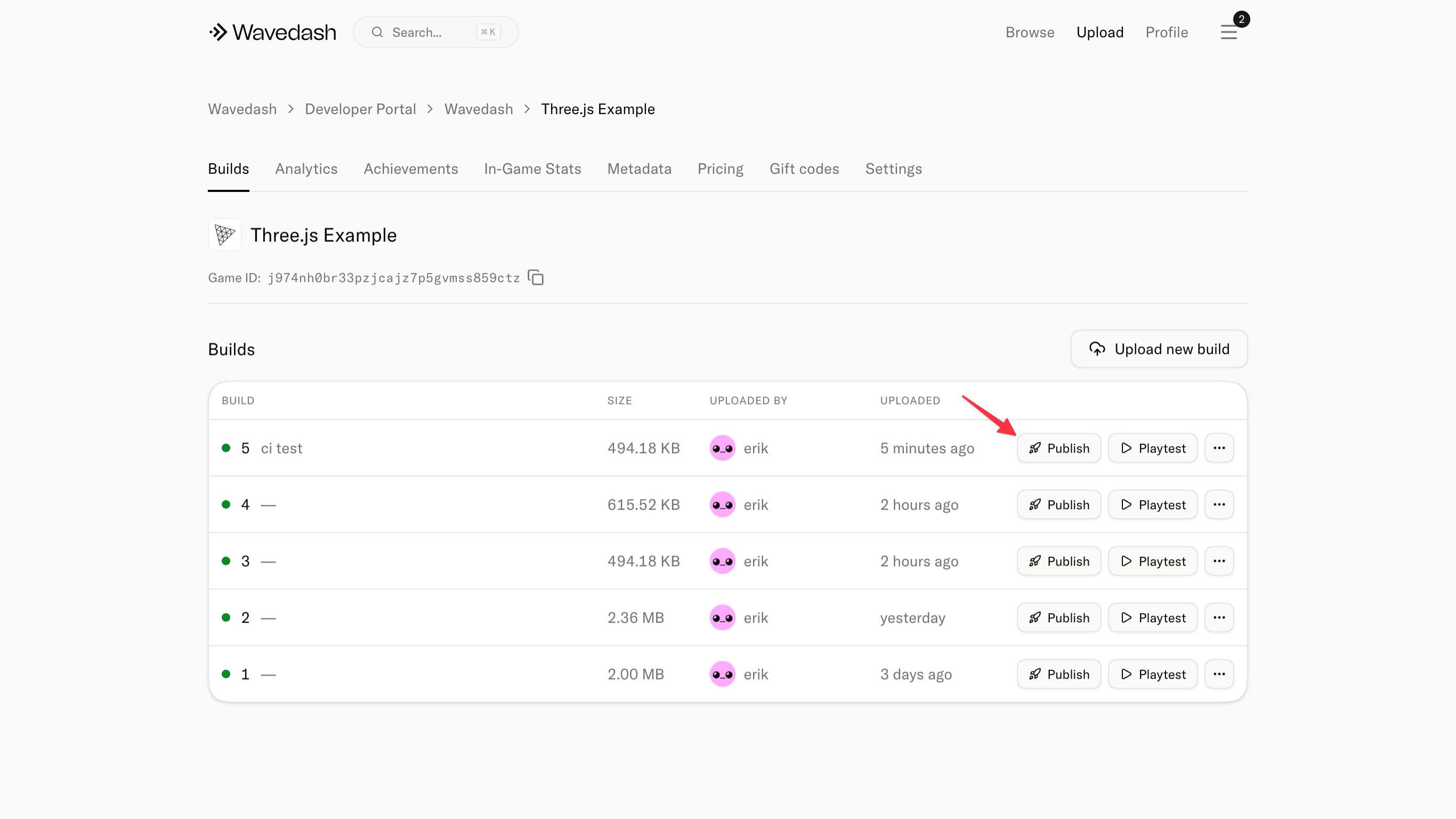
After publishing, load the public game URL in a clean browser to verify everything works.
Your game page is live as soon as you publish. New games also appear in the browse feed, below approved games, until Wavedash reviews them. Approved games join the main section and start appearing in "More like this" recommendations.
Rolling back
If a newly published build has a problem, select an older build and publish that one instead. You can do this from the Developer Portal builds list, or with wavedash publish <BUILD_ID> if you have the older build's ID. You don't need to re-upload anything. Builds stay available unless you delete them from the builds list; a deleted build can't be published or restored.
Things to check before publishing
- The build ID matches the correct game
- You've tested the build on wavedash.com (not just
wavedash dev) - The store page is up to date if this build changes modes, monetization, or content